 ee4b7305a2
This PR adds all the guides from [Visual
Guides](https://bytebytego.com/guides/) section on bytebytego to the
repository with proper links.

- [x] Markdown files for guides and categories are placed inside
`data/guides` and `data/categories`
- [x] Guide links in readme are auto-generated using
`scripts/readme.ts`. Everytime you run the script `npm run
update-readme`, it reads the categories and guides from the above
mentioned folders, generate production links for guides and categories
and populate the table of content in the readme. This ensures that any
future guides and categories will automatically get added to the readme.
- [x] Sorting inside the readme matches the actual category and guides
sorting on production
2.0 KiB
title, description, image, createdAt, draft, categories, tags
| title | description | image | createdAt | draft | categories | tags | |||
|---|---|---|---|---|---|---|---|---|---|
| How to Upload a Large File to S3 | Optimize performance when uploading large files to object storage like S3. | https://assets.bytebytego.com/diagrams/0284-multipart-upload.png | 2024-01-30 | false |
|
|
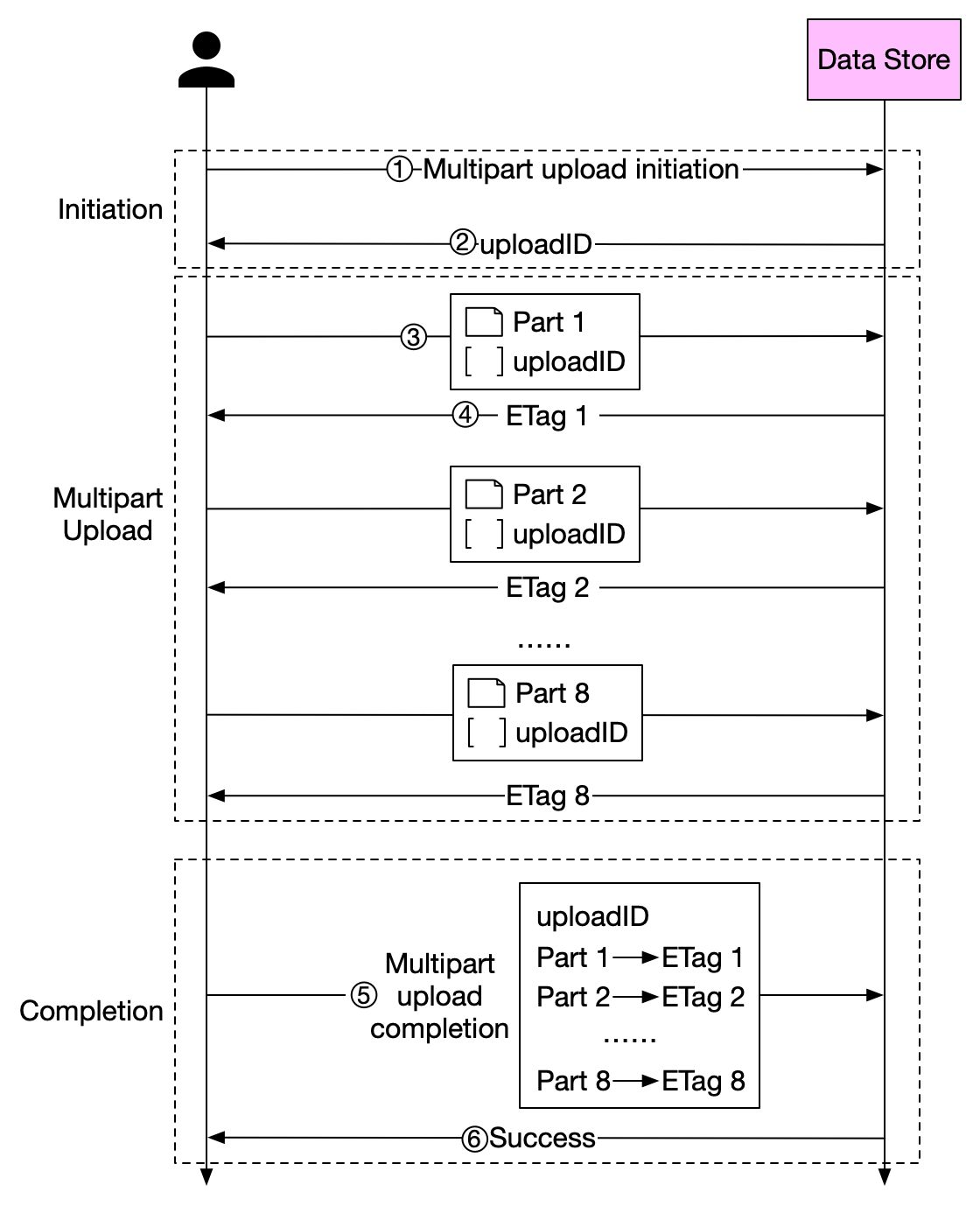
How can we optimize performance when we upload large files to object storage service such as S3?
Before we answer this question, let's take a look at why we need to optimize this process. Some files might be larger than a few GBs. It is possible to upload such a large object file directly, but it could take a long time. If the network connection fails in the middle of the upload, we have to start over. A better solution is to slice a large object into smaller parts and upload them independently. After all the parts are uploaded, the object store re-assembles the object from the parts. This process is called multipart upload.
The diagram above illustrates how multipart upload works:
-
The client calls the object storage to initiate a multipart upload.
-
The data store returns an uploadID, which uniquely identifies the upload.
-
The client splits the large file into small objects and starts uploading. Let’s assume the size of the file is 1.6GB and the client splits it into 8 parts, so each part is 200 MB in size. The client uploads the first part to the data store together with the uploadID it received in step 2.
-
When a part is uploaded, the data store returns an ETag, which is essentially the md5 checksum of that part. It is used to verify multipart uploads.
-
After all parts are uploaded, the client sends a complete multipart upload request, which includes the uploadID, part numbers, and ETags.
-
The data store reassembles the object from its parts based on the part number. Since the object is really large, this process may take a few minutes. After reassembly is complete, it returns a success message to the client.